
IPG Open EdX Documentation

IPG Open EdX Documentation

  • Docs

›Server Tasks

Creating a Course

  • Create a New Online Course
  • Set Course Schedule & Details
  • Add Sections, Subsections & Units
  • Managing Unit and Component
  • Adding Videos
  • Adding HTML
  • Adding Discussions
  • Adding Problems

    • Adding Problems
    • Problem Types
    • Drag and Drop
    • Pointing on a picture
  • Adding Images and Figures
  • Uploading Static Content
  • Course Visibility
  • Creating pages
  • Grading
  • Commonly Used Advanced Settings

Running a Course

  • Managing Certificates
  • Common Instructor Dashboard Tasks
  • Managing Course Discussions

Advanced Management

  • Importing / Exporting Courses
  • Change a user’s password
  • Inactivate / Activate a User
  • Set a user to staff or superuser
  • Server Tasks

    • SSH into Server
    • Set or Change a Password
    • Add a microsite
    • Add a theme

Migration

  • Migrate EdX (Single-Server)
  • Migrate the Theme

Configuration

  • Enable and Update Additional Languages
  • Enable Downloads from Instructor tab in LMS
  • Configure and Enable Certificate
  • Configure Open Response Assessment

SSH into Server

These commands are advanced, and should only be performed by someone who understands Linux.

  1. A user who wants to SSH onto the server should:

    1. Have their IP address added to the allowed SSH IP’s on the server.
    2. Generate an RSA key pair and have the public key placed to the server.
  1. Open a Linux Window

  2. Navigate to the folder which contains your private key pair.

  3. Execute the following command:

    1. ssh –i keyname.pem ubuntu@[platform name]
      where keyname.pem is replaced by the filename of your private key.
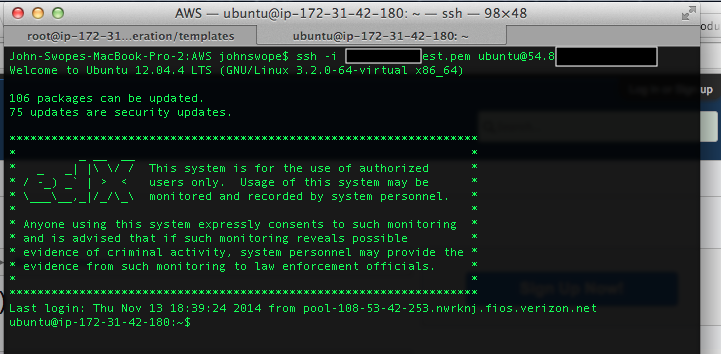
    SSH platform server

← Set a user to staff or superuserSet or Change a Password →
IPG Open EdX Documentation
Docs
Create an Online Course
More
Curricu.me Website
Copyright © 2020 Todos los Derechos Reservados - IPG