IPG Open EdX Documentation

IPG Open EdX Documentation

  • Docs

›Running a Course

Creating a Course

  • Create a New Online Course
  • Set Course Schedule & Details
  • Add Sections, Subsections & Units
  • Managing Unit and Component
  • Adding Videos
  • Adding HTML
  • Adding Discussions
  • Adding Problems

    • Adding Problems
    • Problem Types
    • Drag and Drop
    • Pointing on a picture
  • Adding Images and Figures
  • Uploading Static Content
  • Course Visibility
  • Creating pages
  • Grading
  • Commonly Used Advanced Settings

Running a Course

  • Managing Certificates
  • Common Instructor Dashboard Tasks
  • Managing Course Discussions

Advanced Management

  • Importing / Exporting Courses
  • Change a user’s password
  • Inactivate / Activate a User
  • Set a user to staff or superuser
  • Server Tasks

    • SSH into Server
    • Set or Change a Password
    • Add a microsite
    • Add a theme

Migration

  • Migrate EdX (Single-Server)
  • Migrate the Theme

Configuration

  • Enable and Update Additional Languages
  • Enable Downloads from Instructor tab in LMS
  • Configure and Enable Certificate
  • Configure Open Response Assessment

Managing Certificates

Goal: Enable students who pass a course to request a certificate. Their grade will be verified, and if they have passed then they will receive a digital certificate which can be printed.

Pre-verify your course

  1. Access your course in Studio ([platform url]:18010)

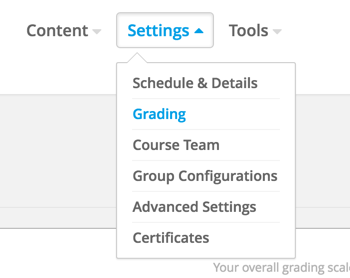
  2. Go to Settings > Grading

    Grading Settings

  3. Verify that your passing Grade is accurate.
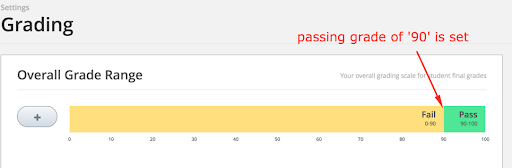
    Passing Grade

  4. Verify that your grading Assignment Types are accurate. For example, if you have one final exam, then your setup will look something like this.
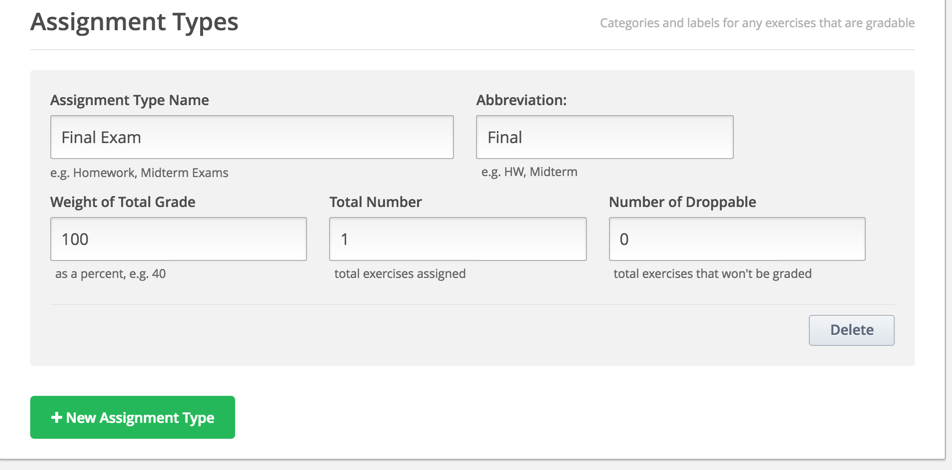
    Assignment Types

  5. Verify that you have graded items in your Course Outline that match your Assignment Types.

    1. Go to Course Outline.
    2. On a subsection, click the gear icon Gear Icon
    3. Click the ‘Grade As’ Dropdown and choose your Assignment Type.
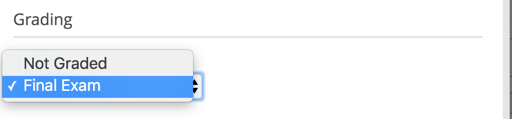
    Grading Dropdown

Set up your certificates

  1. Click on Settings > Certificates.

  2. Click the button to set up your certificate:

    Setup Certificate

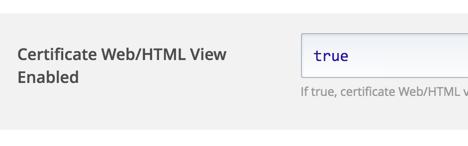
  3. Note: If you cannot see ‘Settings > Certificates’ then go to advanced settings and confirm that “Certificate Web/HTML View Enabled” = true:

    1. Certificate Web/HTML Enable
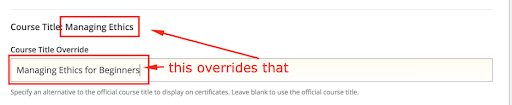
  4. Optionally, you can override the course title:

    1. Override Course Title
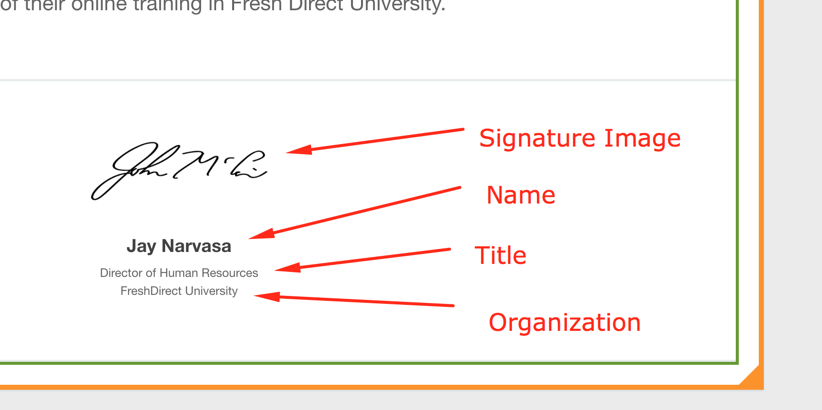
  5. Add one or more signees.

    1. Add signees

Activate Your Certificates in CMS (Studio)

  1. Certificate mode will always be ‘honor’.

    1. Certificate Activate Honor
  2. Click ‘Activate’. Your certificate will now be active.

    1. Certificate Deactivate Honor

Activate Your Certificates in LMS

  1. Access your course from LMS.

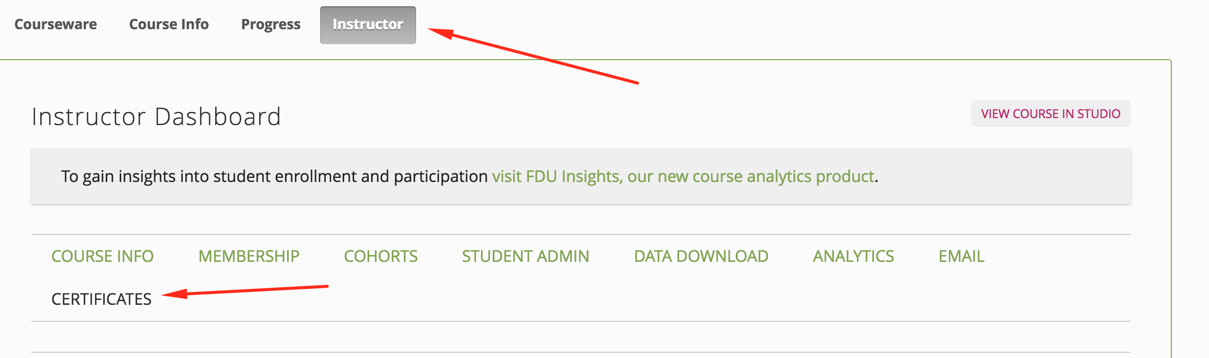
  2. Go to your Instructor Dashboard > Certificates.

    1. Intructor certificate tab
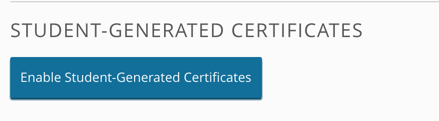
  3. Click to Enable Student-Generated Certificates:

    1. Enable Student Generated Certificates
  4. Pass the course, and confirm that you can see a certificate request button on the Progress Dashboard.
    1. Student Available Certificate
← Commonly Used Advanced SettingsCommon Instructor Dashboard Tasks →
  • Pre-verify your course
  • Set up your certificates
  • Activate Your Certificates in CMS (Studio)
  • Activate Your Certificates in LMS
IPG Open EdX Documentation
Docs
Create an Online Course
More
Curricu.me Website
Copyright © 2020 Todos los Derechos Reservados - IPG