
Problem Types
Problem Structure
Common problems are constructed in a similar way. The contain three elements:
Problem text – surrounded by >> <<.
- Ex:

- Ex:
Answer set – see below for different problem set formats.
Explanation text – surrounded by [explanation]...[explanation]
- Ex:
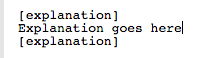
- Ex:
Multiple Choice
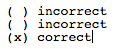
Multiple choice offers multiple answers and there can be only one answer
Select the multiple choice answer set, represented by the following icon:

Answer set is built as follows, with an x denoting the correct answer
Checkboxes
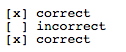
Checkboxes offer multiple answers and there can be one or more than one correct answer.
Select the checkbox answer set, represented by the following icon:

Answer set is built as follows, with an x denoting the correct answer(s)
Text Input
Text input allows the user to enter an answer to a question in a text box. The answer must be exactly the same as the correct answer in order to get credit. Spelling errors or variations will be counted as wrong.
Select the text input answer set, represented with the following icon:

Answer is built as follows. The user’s response must match exactly in order to get credit.

For the above example, ‘Answer’ or ‘answer’ is an acceptable response. ‘Answers’ or ‘Anwser’ is not.
Numerical Input
Numerical input allows the user to enter a number answer to a question in a text box. The answer must match the answer provided in the key or be within an acceptable error range.
Select the numerical input answer set, represented with the following icon:

Answer is built as follows. The user’s answer must be numerical and match the answer number or be within the acceptable error range.
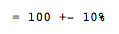
For the above example, ‘100’, ‘90’,’110’, and all numbers in between would be acceptable. ‘89.99’ is not.
Drop-Down
Drop-down is similar to multiple choice. Multiple answers are offered and only one can be correct.
Select the drop-down answer set, represented with the following icon:
 Dropdown image needs to be updated
Answer set is built as follows, with the correct answer surrounded by parentheses.
