
IPG Open EdX Documentation

IPG Open EdX Documentation

  • Docs

›Creating a Course

Creating a Course

  • Create a New Online Course
  • Set Course Schedule & Details
  • Add Sections, Subsections & Units
  • Managing Unit and Component
  • Adding Videos
  • Adding HTML
  • Adding Discussions
  • Adding Problems

    • Adding Problems
    • Problem Types
    • Drag and Drop
    • Pointing on a picture
  • Adding Images and Figures
  • Uploading Static Content
  • Course Visibility
  • Creating pages
  • Grading
  • Commonly Used Advanced Settings

Running a Course

  • Managing Certificates
  • Common Instructor Dashboard Tasks
  • Managing Course Discussions

Advanced Management

  • Importing / Exporting Courses
  • Change a user’s password
  • Inactivate / Activate a User
  • Set a user to staff or superuser
  • Server Tasks

    • SSH into Server
    • Set or Change a Password
    • Add a microsite
    • Add a theme

Migration

  • Migrate EdX (Single-Server)
  • Migrate the Theme

Configuration

  • Enable and Update Additional Languages
  • Enable Downloads from Instructor tab in LMS
  • Configure and Enable Certificate
  • Configure Open Response Assessment

Add Sections, Subsections & Units

  1. Log into Studio. Depending on your configuration, you may access the studio by appending :18010 to the end of your LMS url. So edx.curricu.me becomes edx.curricu.me:18010. Or you may have a custom studio url (e.g. studio.curricu.me).

  2. Select the course you would like to edit. Select Course
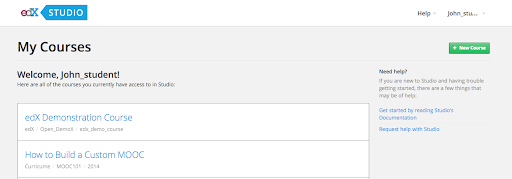
  3. You should be directed to course outline. Course Online
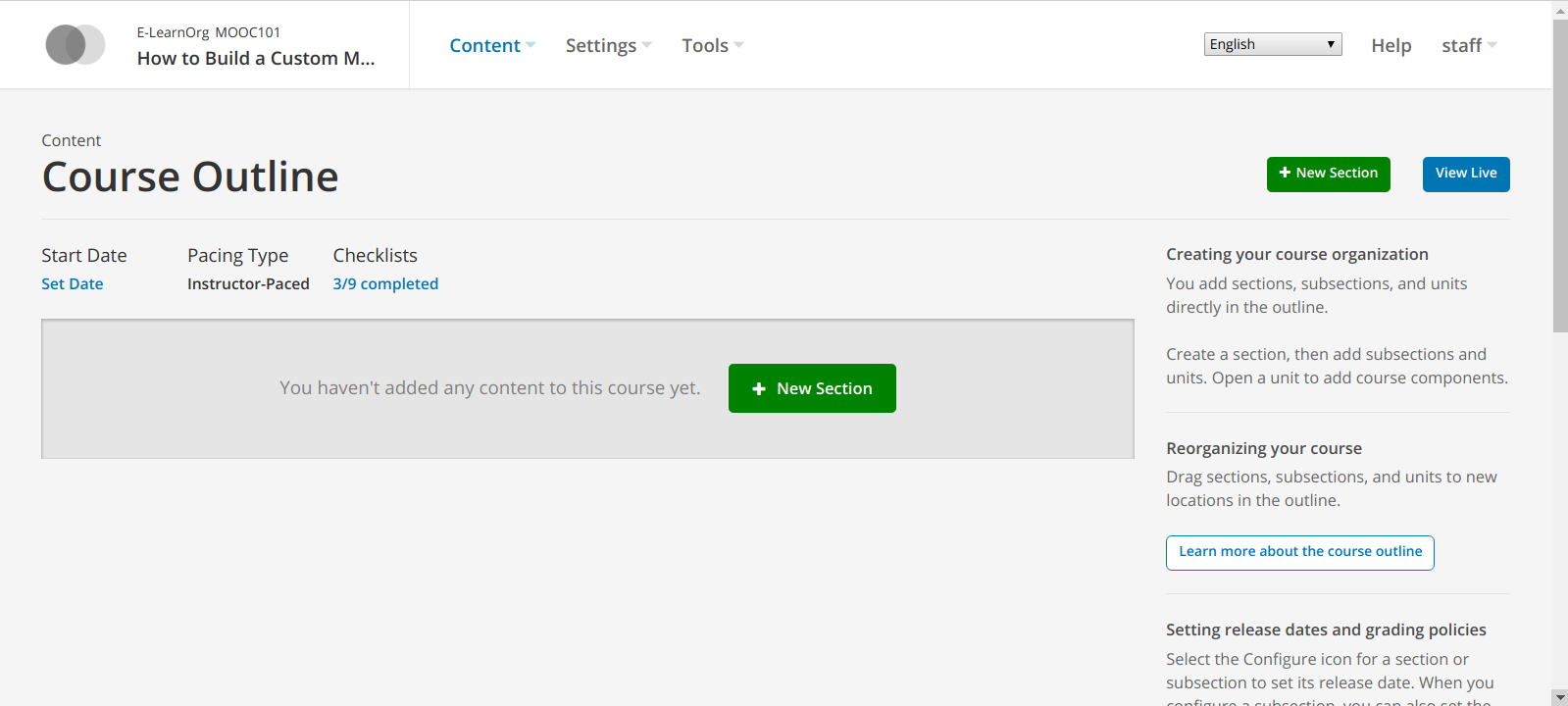
  4. If you don’t have a section you’d like to edit, click ‘+New Section’ in the top right New Section

  5. Give your section a name and press Enter. Section Name

  6. If you don’t have a sub-section you’d like to edit, click ‘+New Subsection’ within your selected section. New Subsection

  7. Enter your subsection a name and press Enter. Subsection Name

  8. Click on the subsection Settings icon and a dialog box will be opened. Subsection Settings
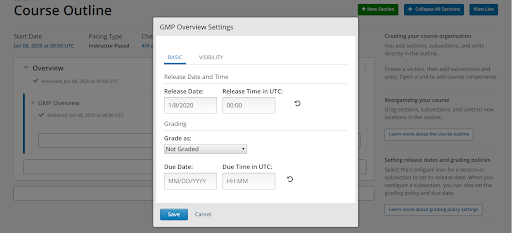
  9. Click on ‘+ New Unit’ to add a new unit. New Unit

  10. Name your Unit. The name is automatically saved when you exit the input box.

Should show a unit image

← Set Course Schedule & DetailsManaging Unit and Component →
IPG Open EdX Documentation
Docs
Create an Online Course
More
Curricu.me Website
Copyright © 2020 Todos los Derechos Reservados - IPG