IPG Open EdX Documentation

IPG Open EdX Documentation

  • Docs

›Creating a Course

Creating a Course

  • Create a New Online Course
  • Set Course Schedule & Details
  • Add Sections, Subsections & Units
  • Managing Unit and Component
  • Adding Videos
  • Adding HTML
  • Adding Discussions
  • Adding Problems

    • Adding Problems
    • Problem Types
    • Drag and Drop
    • Pointing on a picture
  • Adding Images and Figures
  • Uploading Static Content
  • Course Visibility
  • Creating pages
  • Grading
  • Commonly Used Advanced Settings

Running a Course

  • Managing Certificates
  • Common Instructor Dashboard Tasks
  • Managing Course Discussions

Advanced Management

  • Importing / Exporting Courses
  • Change a user’s password
  • Inactivate / Activate a User
  • Set a user to staff or superuser
  • Server Tasks

    • SSH into Server
    • Set or Change a Password
    • Add a microsite
    • Add a theme

Migration

  • Migrate EdX (Single-Server)
  • Migrate the Theme

Configuration

  • Enable and Update Additional Languages
  • Enable Downloads from Instructor tab in LMS
  • Configure and Enable Certificate
  • Configure Open Response Assessment

Adding Videos

  1. Click the ‘Video’ component. Add a Video

  2. An editable video component appears. Click ‘Edit’ on the top right. Edit

  3. Ensure the ‘Basic’ is selected, and edit the following components. Basic

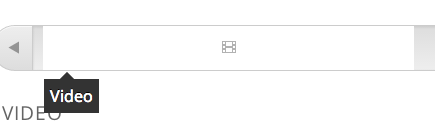
    1. Component Display Name – This appears as a title over the video and when a user mouses over the unit in the Courseware tab. In the following example, the Component Display Name was ‘Video’ Video bar
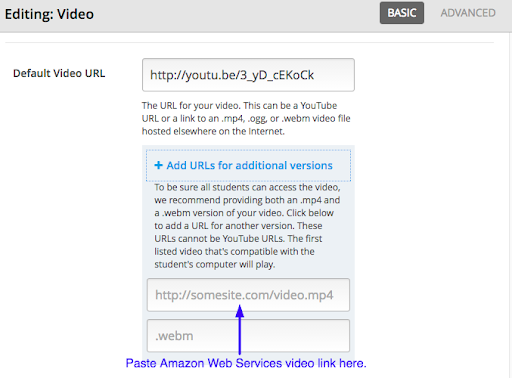
    2. Default Video URL – Paste your youtube link here. The tool will accept most Youtube link formats. If you run into an error, try a different version of the link. Simpler is better.

    For Non YouTube videos like Amazon Web Services (or AWS), Vimeo, or WebM, click +Add URLs for addition versions (see below): Non Youtube Videos
    1. Timed Transcript is not in scope for this training.
  4. Click ‘Advanced’ to edit advanced settings. Most advanced settings are out of the scope of this tutorial. Advanced

    1. Upload Handout – Here you can upload materials that can be downloaded by the students. These are commonly lecture decks or notes.
  5. Click Save to finalize your changes. Save

  6. Don’t forget the visibility (public/private) rules.

← Managing Unit and ComponentAdding HTML →
IPG Open EdX Documentation
Docs
Create an Online Course
More
Curricu.me Website
Copyright © 2020 Todos los Derechos Reservados - IPG